The following picture highlight the different sections of the annotation interface.
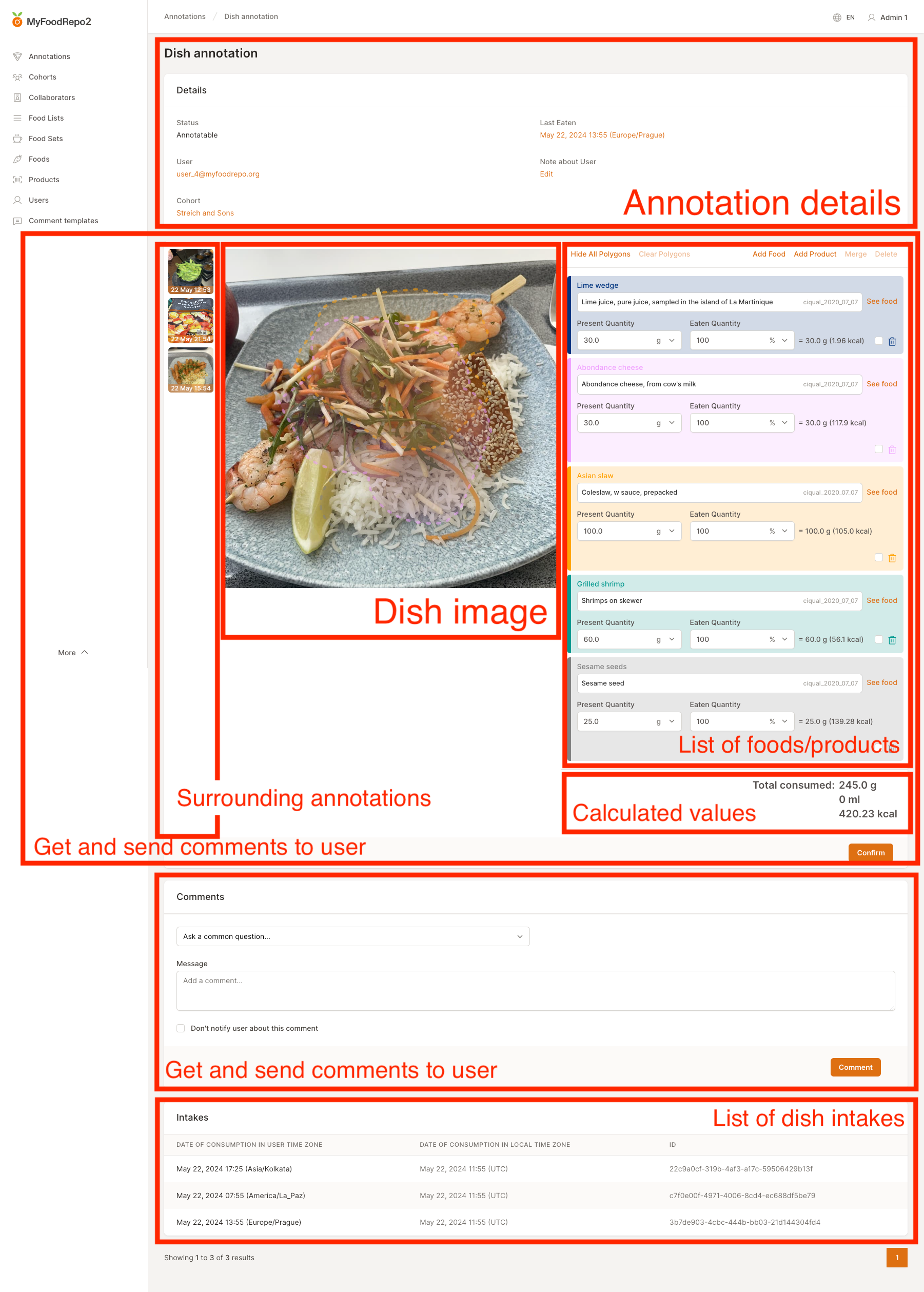
Annotation details
In the details section, you will find information on the status of the dish, the user, the cohort they belong to, a timestamp with the date and time of last consumption, and a notes section to log and edit any dietary specifications or reminders about the user’s diet (e.g., vegan, lactose-free, 2 sugars in coffee). Orange-colored details are clickable for more information. Once a note is logged, it will appear on all the user’s annotations.
The dish analysis section
This is where the majority of the annotator’s work is performed. On the left, the main image of the dish to be analyzed is accompanied by smaller history thumbnail images (see below for more information).
The working area displays a primary list of foods and products, initially analyzed using an AI image recognition service and the chatbot if the user had interactions with it.
Using the buttons above the list, the annotator can add a food or a product. Each row exposes the food/product picker, the consumed quantity, the unit, and a trash icon to delete the item. A checkbox next to the trash icon allows selecting multiple items for bulk deletion.
After the AI service recognizes the image, it identifies the best possible match from the selected food list(s) for the cohort.
In the following example, ‘Breaded cutlet’ was first recognized by the AI and then matched with ‘Veal, breaded escalope, cooked’ from the Ciqual 2020 food list.
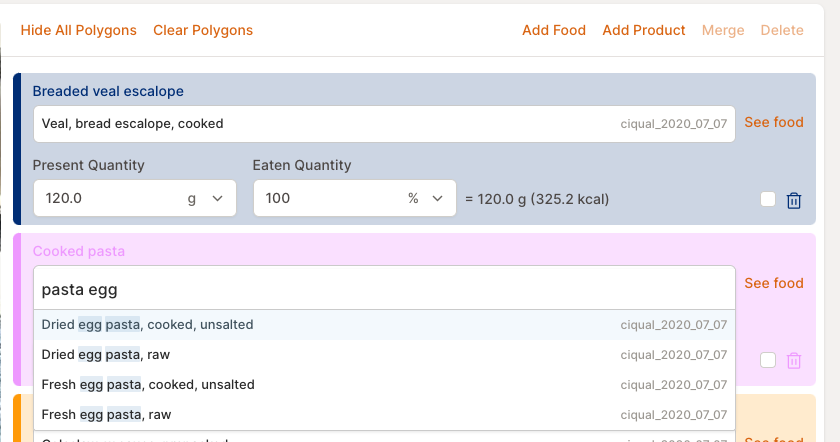
The chatbot estimates the consumed quantity (in grams or ml) and will adjust it during the conversation if the user specifies how much they ate. For example, if a picture shows an entire plate of food but the user mentions having only eaten 50% of it, the chatbot will adjust the consumed quantity accordingly. The total calorie count updates automatically.
The annotator can refine the initial AI analysis by searching for and selecting a more appropriate match from the searchable dropdown food list, and can recalibrate the consumed quantity directly in the quantity field.
Surrounding annotations
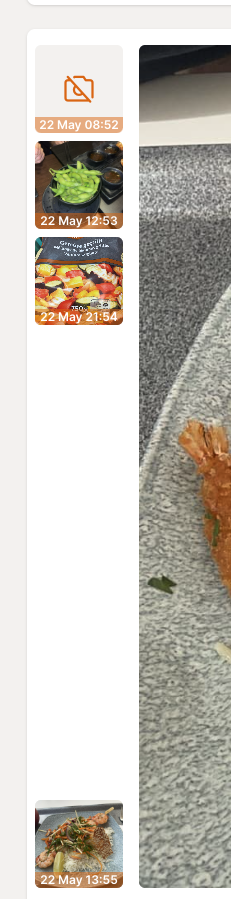
The smaller side thumbnail images within the specific dish’s window are designed to provide a more comprehensive view of the user’s before-and-after consumption history.
This feature helps anticipate and prevent unnecessary duplication of dishes and/or ingredients and can avoid extra counting.
Comment section
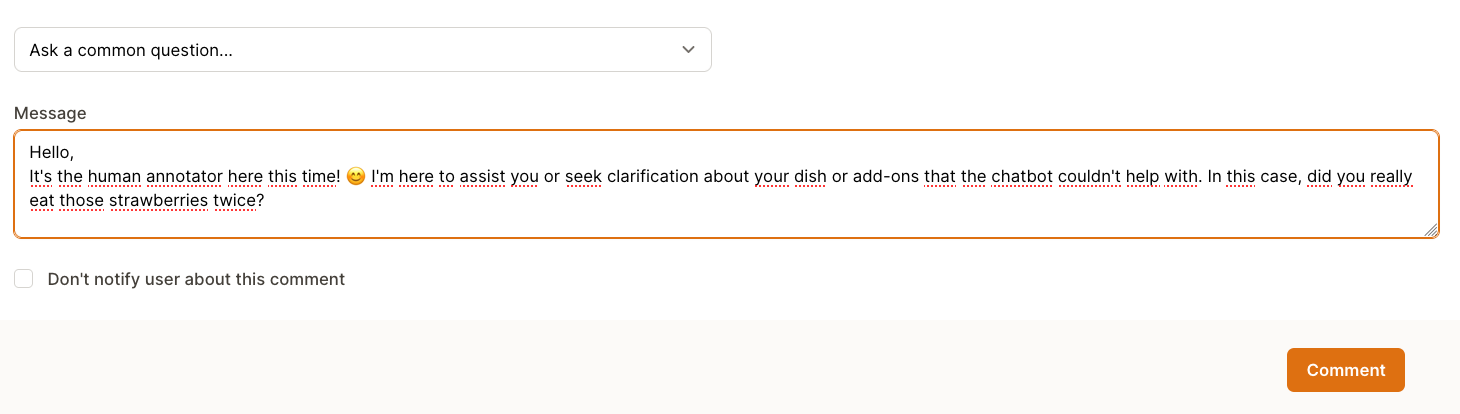
This section enables direct communication between the annotator and the participant. Above the comment field, a Comment templates dropdown (“Ask a common question…”) lets the annotator insert a ready-made message instead of typing a common question from scratch; the field below the dropdown shows which language the participant reads, so the inserted template is shown in that language. Additionally, a checkbox is provided for times when the annotator’s comment does not require a response from the participant (e.g., Thank you! Welcome to the study!, Well noted! etc.).
Comment templates are managed from the “Comment templates” entry in the left menu, where you can create, edit and delete them.
Weight estimation
Weight estimation is the most challenging aspect of annotation, and proficiency comes with practice. Over time, annotators develop confidence in estimating weights for common foods and drinks based on:
- Participants’ typical food habits, as portions tend to repeat themselves once annotated.
- Standard portion sizes (e.g., pizza slices based on pizza sizes, meat cuts, pre-packaged prepared meals/foods on supermarket sites, fast-food restaurants with standard portions on their sites, and Open Food Repo for portion sizes of barcoded products).
- Common measurements (e.g., spoonfuls, cups, beer, and wine glasses with standard volumes based on their sizes).
- Weighing everything at home.
While experience is valuable, additional resources are available. Reference sites and documentation can provide further guidance.