Once MyFoodRepo admins create a cohort for you in the web backend, they’ll send you an email invitation to sign up in the MyFoodRepo web backend as a cohort manager.
This sign-up step is necessary only if you haven’t previously signed up in MyFoodRepo. If you already have an account, simply sign in, and the new cohort will be available along with the others you have access to.
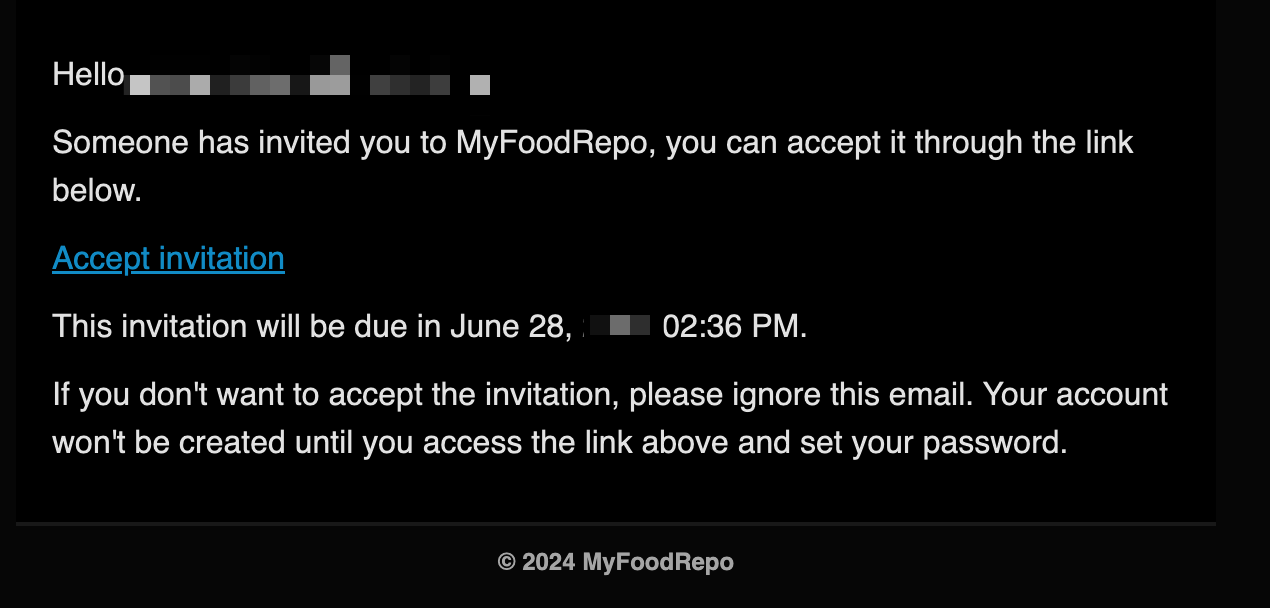
Click the “Accept invitation” link in the email to be redirected to the sign-up form.
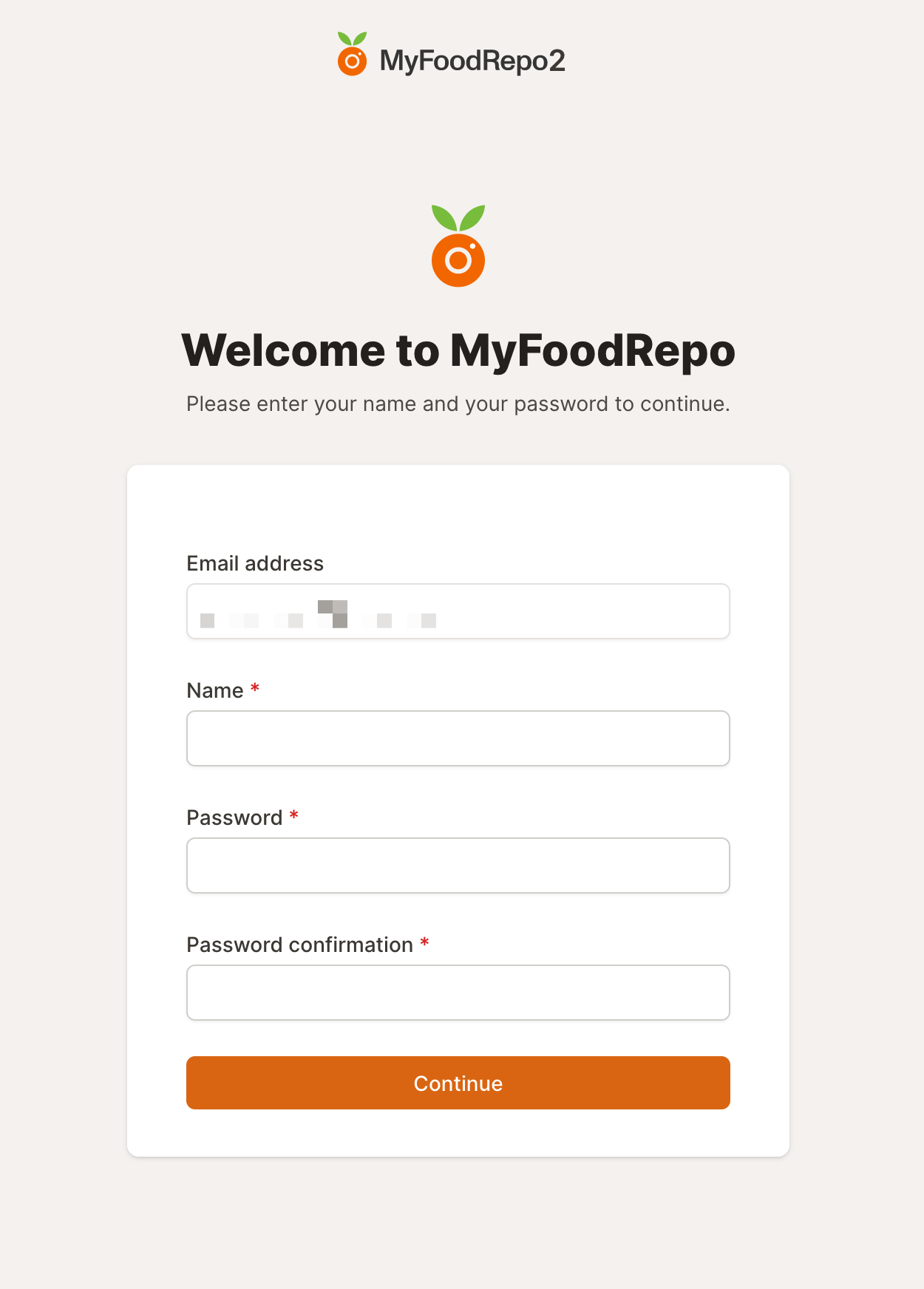
Fill out the form with your name and choose a password. Your email will already be filled in. Click “Continue” to proceed to the passkey form. WebAuthn passkeys are used as a two-factor authentication (2FA) solution, adding an extra layer of security to the authentication process.
Enter a passkey name (matching the device you’ll use as the passkey), click “Add Passkey,” and follow your browser’s instructions. If you encounter any issues, refer to the guide on How to create a passkey.
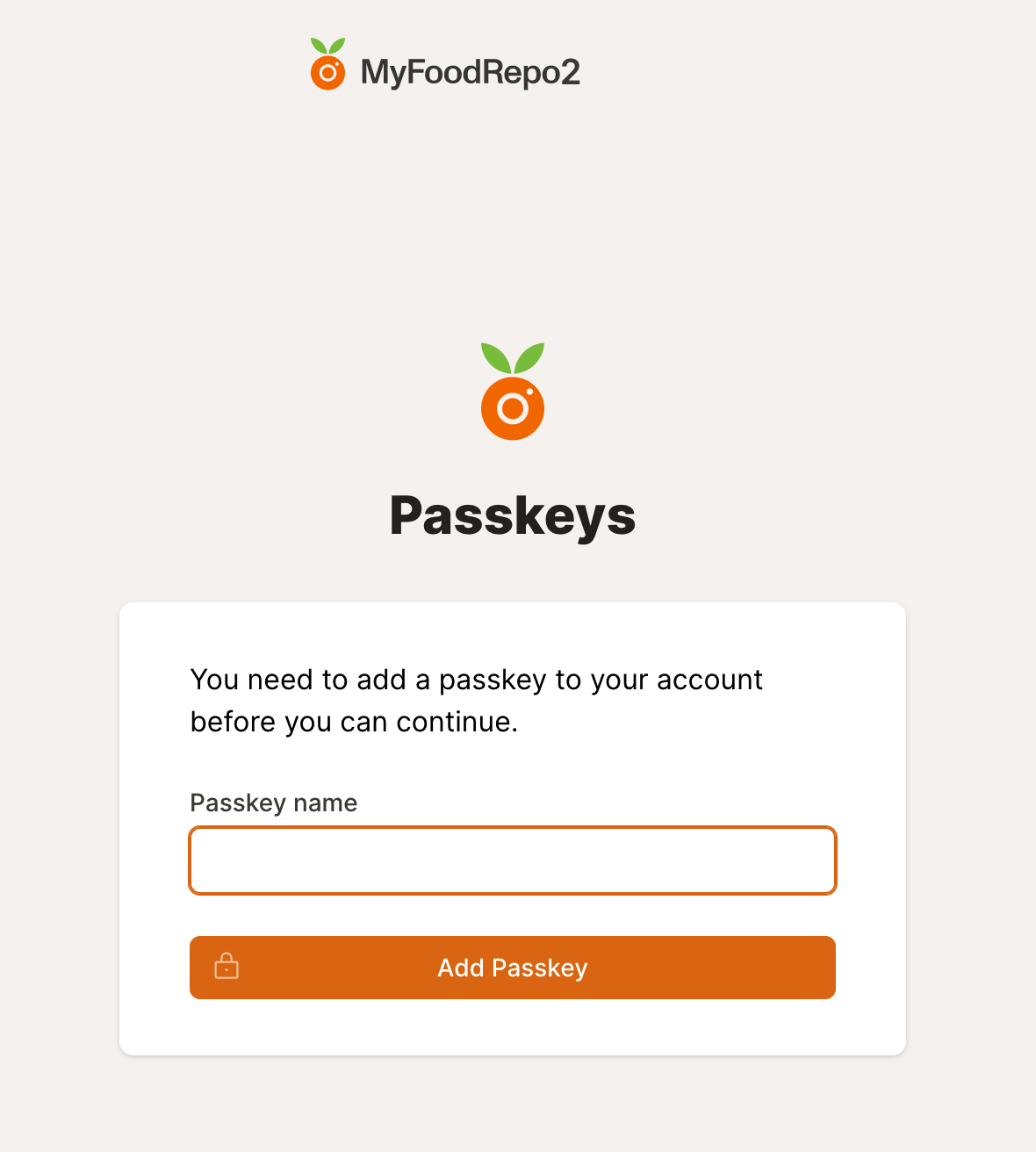
The passkey step is enforced: until you register at least one passkey, the application will keep redirecting you to the “Add Passkey” form on every page. Once you have registered a passkey, you can add more, or delete and replace existing ones, from your profile page; if you remove your last passkey, the same enforced registration flow will start again on the next page load.
Once the passkey is created, you’ll be redirected to the list of annotations for your cohort(s).